Apple etiketine sahip kayıtlar gösteriliyor. Tüm kayıtları göster

2 Kasım 2019 Cumartesi

Apple Magic Mouse Windows 10 Tanıtma / Using Apple Magic Mouse On The Windows 10

Apple Magic mouse ve scrool özelliğini Windows 10 işletim sisteminde yapılması gerekenler aşağıdaki gibidir.

Öncelikle aşağıdaki linkten Boot Camp Destek Yazılımını indirin.
https://support.apple.com/kb/DL1837?locale=tr_TR

İndirdiğiniz dosyayı bir klasöre açın.
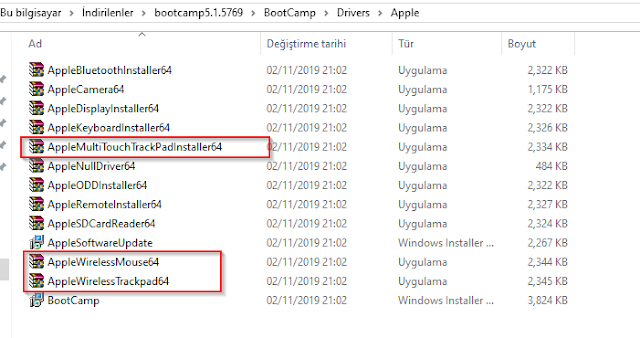
Yukarıdaki resimde işaretlediğim dosyaları sırayla bilgisayarınıza kurun. Tebrikler kurulumu başarıyla tamamladınız.

For English :

If you want to use Apple Magic mouse on the Windows 10, the following under the steps.

First, step download to the below link.
https://support.apple.com/kb/DL1837?locale=tr_TR


Extract to downloaded files.

Install the files marked in the picture belove. Congratulations, completed your mouse installing.
Share:

3 Ekim 2019 Perşembe

Remote Kill Process - Remote App Kill

Powershell

Assuming you have an account with the requisite permissions, and have configured Powershell for remote use (not covered in this answer, but here's a free e-book from Don Jones covering how to get set up,) you can use one of several Cmdlets to remotely kill processes.

Stop-Process via Invoke-Command

You should be able to use Stop-Process along with an Invoke-Command (or by opening a more permanent remote session).
Invoke-Command -ComputerName RemoteComputer -ScriptBlock {Stop-Process processname}
This would be my preference, but requires some configuration in advance, so is not ideal in every situation.

Built-in Solutions

Taskkill.exe

Taskkill is provided on recent Windows machines, and can be used remotely with the /s parameter.
Example:
taskkill /s remotecomputer /pid processID

Sysinternals Tools

You can also use either of PSKill or PSExec (available at live.sysinternals.com) to terminate processes.

PSKill

Similar to Taskkill, but not provided on Windows machines by default.
Example:
pskill \\remotecomputer <process ID | name>

PSExec

Using PSExec, on the other hand, you can run any command you would normally use to manage processes locally.
Example:
psexec \\remotecomputer taskkill /pid processID


0
You can run this command from cmd or the start menu:
taskkill /f /im name.exe 
This also has a /S parameter to allow you to set the system to connect to. So you will be able to:
taskkill /s remoteserver /f /im name.exe
To find name.exe,
tasklist
will give you a chart with all the processes, the names, the executable (name.exe) and the PID [process ID].

Share:

12 Mart 2019 Salı

Apple Kablosuz bluetooth klavyemi Windows 10 Professional bilgisayarıma tanıttım.

Nasıl 1. Nesil Apple Kablosuz bluetooth klavyemi Windows 10 Professional bilgisayarıma tanıttım.
1 - Ayarlar Denetim Masasından Bluetooth'un açık olduğundan emin olun. "Bluetooth" kelimesini aradım ve "Aygıtlar ve Yazıcılar" altındaki "Bluetooth aygıtı ekle" yi tıkladım.
2 - Apple Kablosuz Klavyeyi KAPALI konuma getirdim (zaten kapalıysa devam et ..)
3 - Yeşil LED yanana kadar klavyedeki güç düğmesini basılı tuttum ve yanıp sönmeye başladım ... Bilgisayar ekranına şifre ekranı gelene kadar AÇMA TUŞUNU SÜREKLİ BASILI TUTUN!
4 - Ve eşleştirme kodu geldi, klavyedeki güç düğmesini basılı tutarken / ekrana gelen kodu girip enter tuşuna basın. ( ENTER TUŞUNA BASAN KADAR GÜÇ DÜĞMESİ BASILI OLACAK.)
5 - Eşleştirme tamamlandıktan sonra güç tuşundan elimi çektim. Yükleme tamamlandı ve bilgisayara sürücüler yüklendi.
Teşekkürler ve iyi şanslar,

I know this thread is old but this worked for me... currently typing on my (1st-gen) Apple Wireless Keyboard, Dell Notebook,  Windows 10 Pro.
1 - I'm sure you can use Bluetooth in the Settings app, but I used Control Panel. I searched for "bluetooth" and clicked "Add a Bluetooth device" under "Devices and Printers."
2 - I powered the Apple Wireless Keyboard OFF (if already off then proceed..)
3 - I held down the power button on the keyboard until the green LED came on AND started flashing... KEEP HOLDING THROUGHOUT PAIRING PROCESS!
4 - The pairing code FINALLY came up, and I was able to type in the code/hit enter (while still holding the power button on the keyboard).
5 - I let off of the power button upon pairing finalized, the computer installed drivers, and I typed this response!
Thanks and good luck,


Share:

Blog Arşivi